iPhone & iPad
Other deviceRecommended
iphoneipadiosipadosofficial-appsafarimobileairplaywatching
Owncasts for iOS
RecommendedUse the native Owncasts app to browse the directory or connect directly to your own server.

- Best experience for watching Owncast streams on mobile.
- Directory browsing built in.
- Picture-in-picture support for multitasking.
- AirPlay integration for casting to TV.
Show step-by-step instructions
- Install Owncasts for iOS from the App Store.
- Launch the application and browse the directory or add your own Owncast server in settings.
- Select a stream to start watching.
- Use the AirPlay button to cast to compatible devices like Apple TV or AirPlay-enabled TVs.

Safari Browser
Watch Owncast streams directly in Safari with full-screen and AirPlay support.

- No app installation required.
- Works with any Owncast server.
- Built-in AirPlay controls in video player.
- Picture-in-picture support on supported devices.
Show step-by-step instructions
- Open Safari on your iPhone or iPad.
- Navigate to your Owncast server URL (e.g.,
https://watch.owncast.online). - Tap the play button to start the stream.
- Use the AirPlay button in the video controls to cast to other devices.
- Tap the full-screen button for immersive viewing.
VLC for iOS
Use VLC to play Owncast streams with advanced playback controls and options.

- Advanced media player with extensive format support.
- Network stream support for direct URL input.
- Offline playback capabilities.
- Built-in AirPlay support.
Show step-by-step instructions
- Install VLC for iOS from the App Store.
- Open VLC and tap the Network tab.
- Enter your Owncast server URL (e.g.,
https://watch.owncast.online). - Tap the stream to start playback.
- Use AirPlay button to cast to other devices if desired.
AirPlay to TV
Stream from your iPhone or iPad to Apple TV, AirPlay-compatible TVs, or other AirPlay receivers.
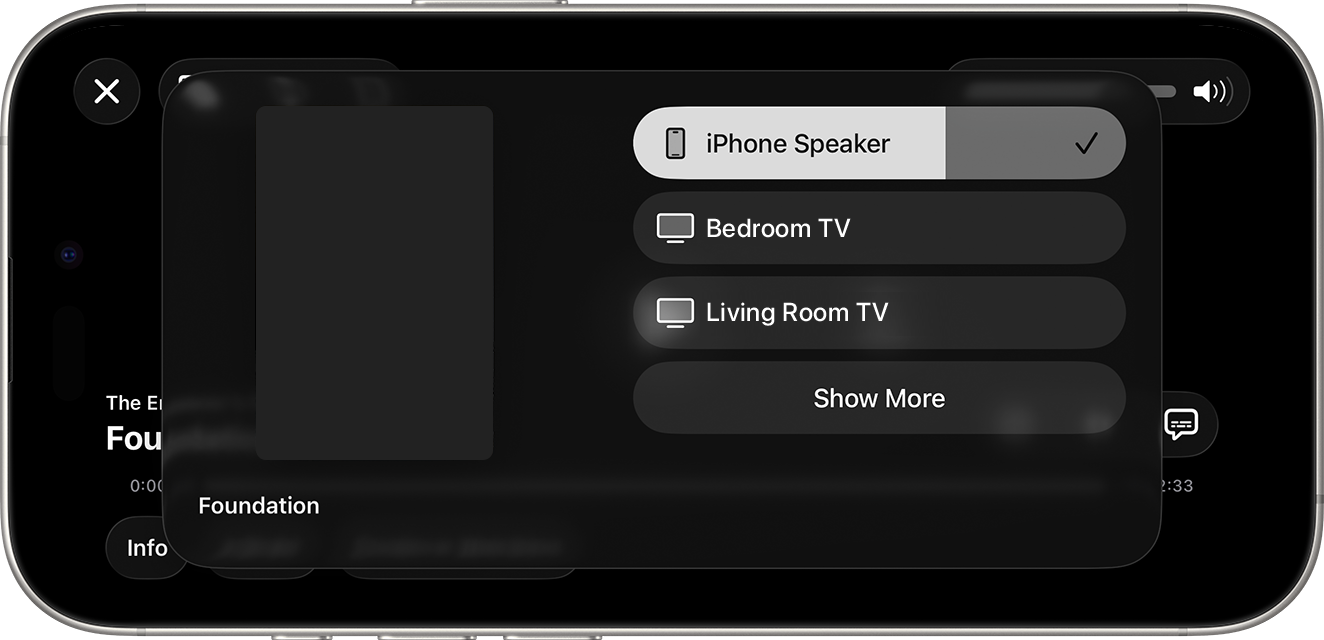
- Works from both the Owncasts app and Safari.
- High-quality video streaming to large screens.
- Control playback from your mobile device.
- Continue using your phone while streaming.
Show step-by-step instructions
- Start playing an Owncast stream on your iPhone or iPad (using either the Owncasts app or Safari).
- Look for the AirPlay button in the video controls or app interface.
- Tap the AirPlay button and select your target device (Apple TV, smart TV, etc.).
- The stream will begin playing on the selected device.
- Use your iPhone/iPad as a remote control.
For more details, visit Apple's AirPlay documentation.
Control Center AirPlay
Use Control Center to quickly AirPlay any Owncast stream to compatible devices.

- System-wide AirPlay access from Control Center.
- Works with any app or browser playing Owncast streams.
- Quick device switching.
Show step-by-step instructions
- Start playing an Owncast stream in any app or Safari.
- Open Control Center (swipe down from top-right on newer iPhones, swipe up from bottom on older models).
- Tap the AirPlay icon (rectangle with triangle).
- Select your AirPlay-compatible device from the list.
- The audio and video will stream to the selected device.
Contributors to this page